
How to Install YMusic APK on Android
Install YMusic by downloading the YMusic APK, opening it from your browser or file manager, and allowing that same app to install unknown apps. Accept Android’s Package Installer prompt, open YMusic, then remove the temporary install-source permission.
Install path at a glance
The short procedure is:
- Download the APK and locate the completed file.
- Open it with the browser or file manager you intend to use.
- Allow that app—not every app—to install unknown apps.
- Return to the APK, tap Install, and review first-launch permissions.
Android 5–7 uses a different Unknown sources setting from Android 8–16. Samsung, Xiaomi, OPPO, realme, and vivo can also add their own menu names or blockers. Use the matching branch below if the standard prompt does not lead directly to Package Installer.
Before You Install YMusic
Confirm the device, file, and existing-app state before changing security settings. These checks prevent most “App not installed” loops and protect local data if the phone already contains another YMusic build.
| Preflight check | What to confirm | Why it matters |
|---|---|---|
| Android version | Android 5.0 or newer | The YMusic package declares Android 5.0 as its minimum install level |
| Device and build | The build listed on the Hub supports the device | A package built for another processor or device cannot be repaired through permission changes |
| Completed download | The file ends in .apk and the browser no longer marks it as downloading | A partial file cannot pass package validation |
| Free storage | Internal storage has room for Android to stage and install the app | The compressed APK is not the only space Android needs |
| Existing YMusic copy | Back up important local playlists, settings, and downloads | Uninstalling an existing copy can remove its app data |
| Screen lock | Know the PIN, pattern, or password | Some devices require authentication before a security-setting change |
| Play Protect | Leave Google Play Protect enabled | A source prompt and a harmful-app detection require different decisions |
If YMusic is already installed, first try an in-place install. Android preserves app data only when the package identifier and signing certificate are compatible. Do not uninstall the old copy merely because a competitor guide says every update requires a clean install.
An Android work profile, school device, or company-managed phone may prohibit unknown-app installation through administrator policy. A missing or locked setting on a managed device is not a normal consumer-phone error; only the administrator can change that policy.
How to Install YMusic in 5 Steps
1. Download the APK
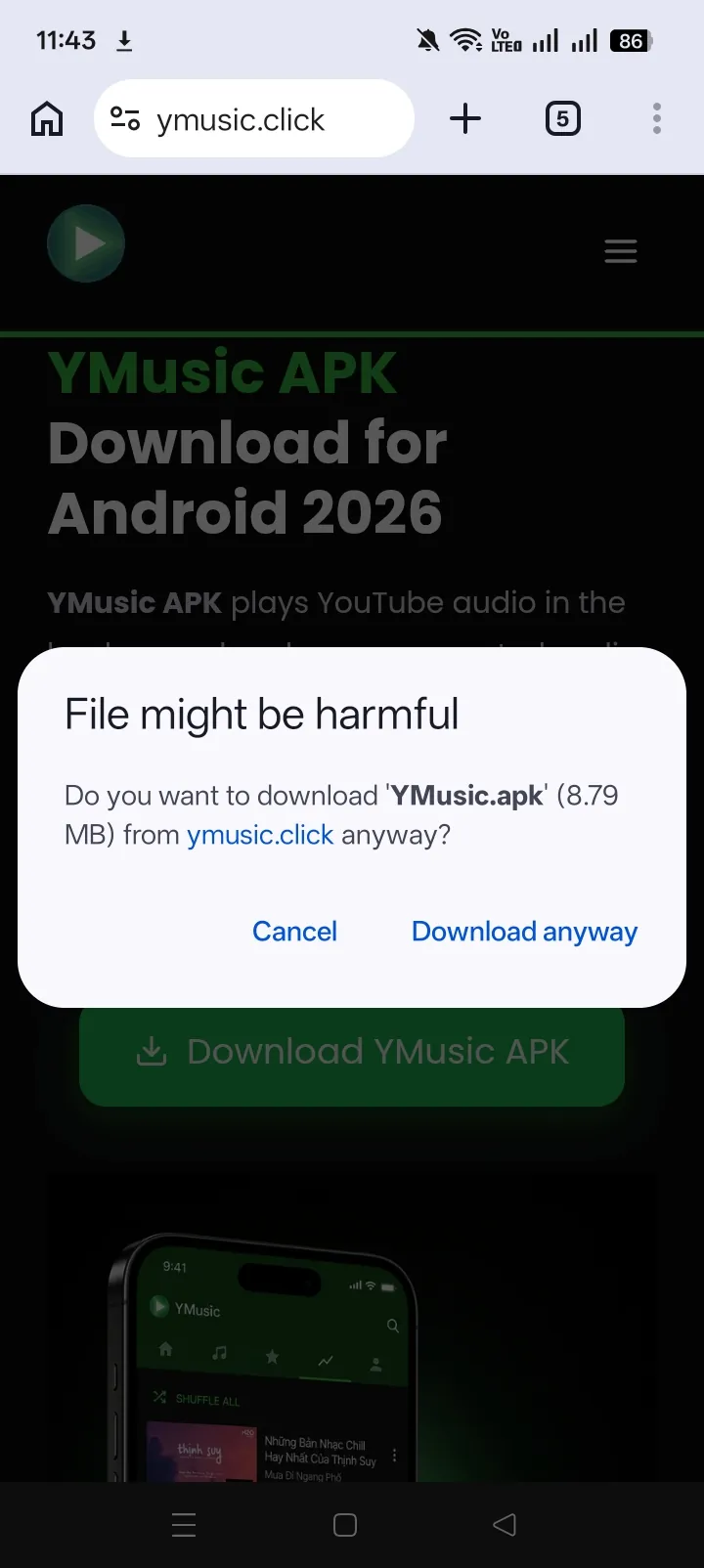
Open the YMusic record and start the Android download. Keep the download in the browser until it finishes. A warning that APK files can harm a device is a general file-type warning; it does not examine this particular package. Continue only when the source and file record are the ones you intended to use.
2. Locate the completed file
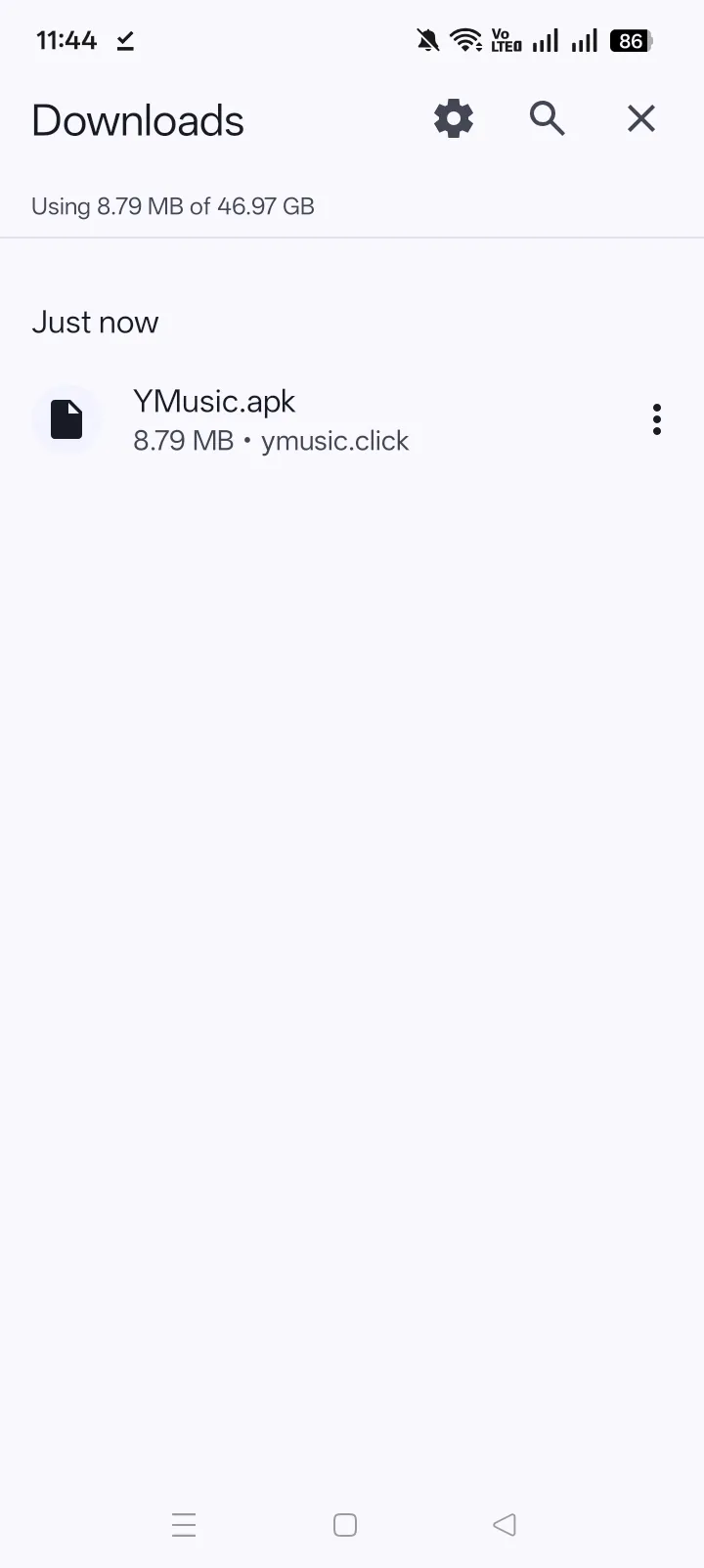
The quickest route is usually the completed-download notification. If it disappeared:
- Chrome: open the three-dot menu, then Downloads;
- Samsung Internet: open the menu, then Downloads;
- Files by Google: open Downloads;
- Samsung My Files: open Downloads or APK installation files;
- other browsers: open their Download manager or use the phone’s file manager.
The file should end in .apk. A .crdownload, .bin, zero-byte file, or browser entry that still shows progress is not ready for Package Installer.
3. Allow the app opening the APK
Tap the completed APK. On Android 8 or newer, Android may say the selected app is not allowed to install unknown apps. Open Settings from that message and enable Allow from this source for the named browser or file manager.
The source is the app handing the file to Package Installer. If Chrome downloaded the APK but My Files opens it, My Files needs the permission. Allowing Chrome does not automatically allow My Files.
On Android 5–7, open Settings → Security and enable Unknown sources. If the phone offers permission for only this installation, choose that narrower option.
4. Run Android Package Installer
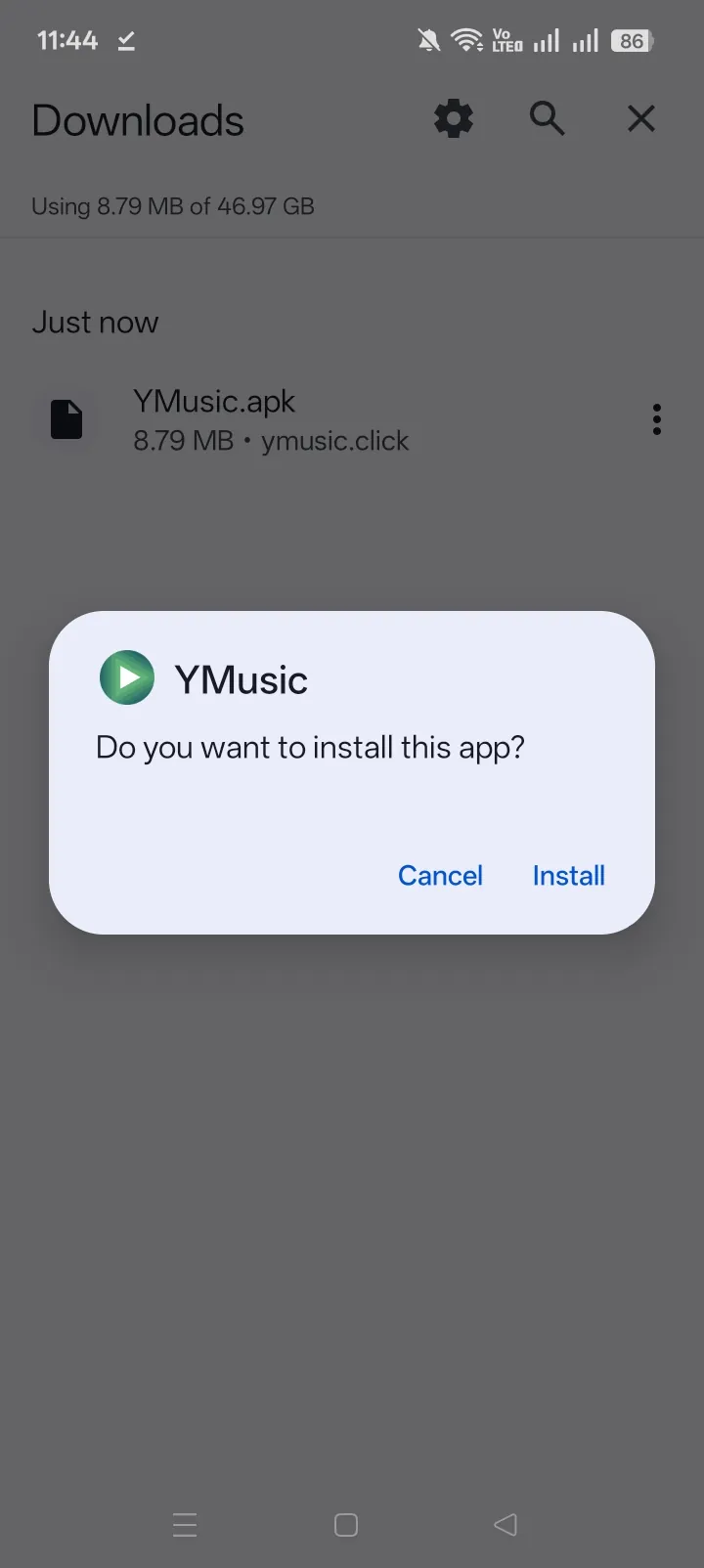
Return to the download after changing the setting. Tap the APK again, confirm that the screen identifies YMusic, and select Install. Android validates the package, checks it against any installed copy, stages the files, and commits the app.
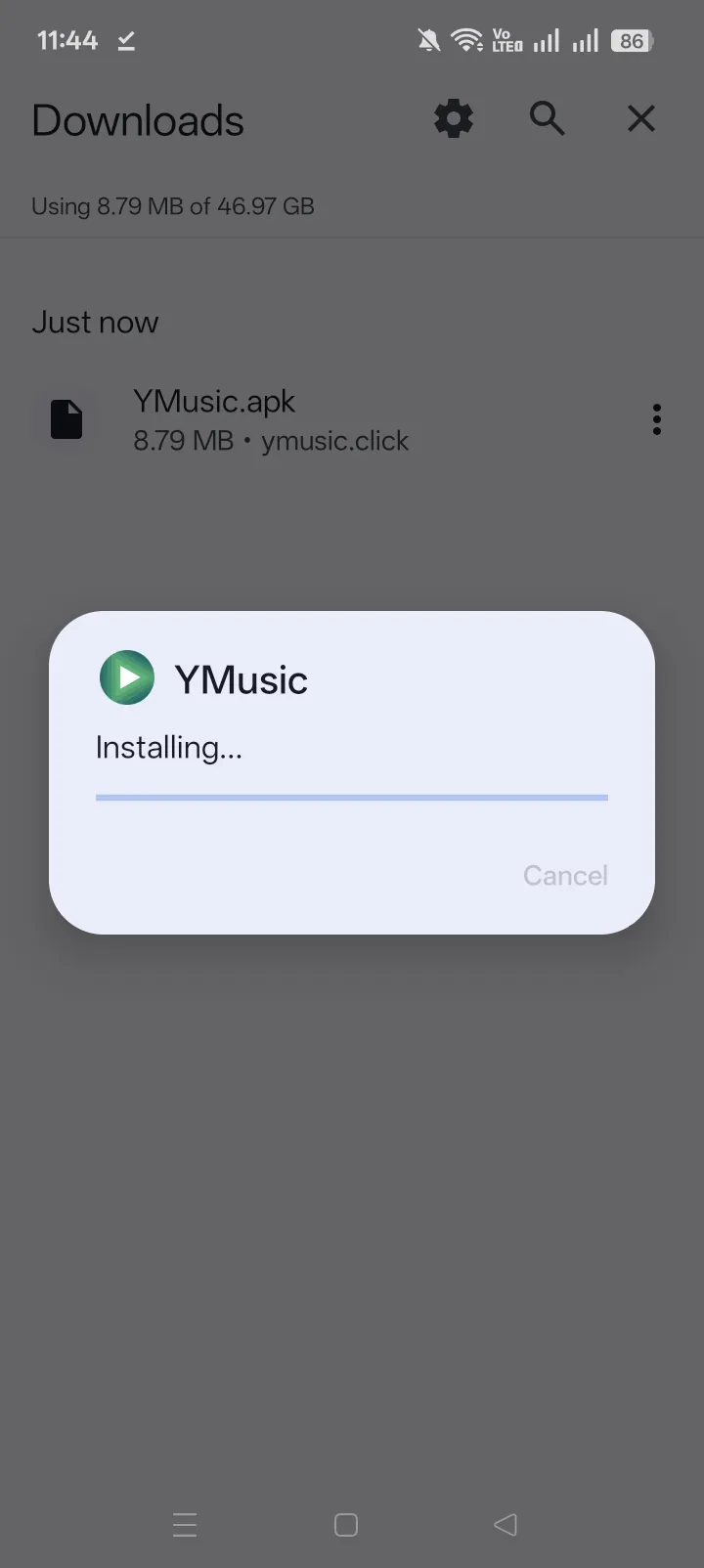
Do not keep tapping the file while Package Installer is working. If it ends with a specific message, use that wording in the troubleshooting section instead of repeating the same install.
5. Open YMusic and remove the source permission
Tap Open, or launch YMusic from the app drawer. Respond to each permission when a feature explains why it needs access. When installation is complete, return to Install unknown apps and turn off Allow from this source for the browser or file manager.
Removing the source permission does not uninstall YMusic or revoke YMusic’s own runtime permissions. It only stops that browser or file manager from starting another APK installation without a new approval.
Which Unknown-Apps Setting Does Your Android Version Use?
Android 5–7 uses a device-wide Unknown sources control; Android 8–16 grants installation permission to a particular browser, store, or file manager. Android changed the model in version 8 so one allowed source would not authorize every other app.
| Android generation | Setting model | Typical path | Installation note |
|---|---|---|---|
| Android 5–7 | Device-wide Unknown sources | Settings → Security → Unknown sources | Prefer a one-install choice when the device offers one |
| Android 8–12 | Per-source Install unknown apps | Settings → Apps → Special app access → Install unknown apps | Choose the app that opens the APK |
| Android 13–16 | Per-source permission plus newer security checks | Search Settings for Install unknown apps, then choose the opener | An older-target or OEM-verification warning may appear |
Android’s distribution documentation confirms the Android 8/API 26 boundary. Menu names vary between manufacturers, but the source-specific rule remains the stable diagnostic.
What does “built for an older version of Android” mean?
Newer Android releases can warn that YMusic targets an older Android behavior level. That message describes compatibility and privacy-policy enforcement, not a malware verdict. Installation may still be available, but successful installation does not prove that background playback, account access, downloads, or storage behavior will work unchanged on every Android 13–16 device.
Read the exact buttons on the system screen. If Android offers More details or Install anyway, decide after confirming the file source. If Play Protect names malware or another harmful category, stop rather than treating it as the ordinary older-version warning.
Which App Needs Install Permission?
The app that opens the APK needs permission; the website does not receive Android installation permission. Android 8+ records the allowance against the browser, file manager, or store that starts Package Installer.
| How the APK is opened | App to allow |
|---|---|
| Tap Chrome’s completed-download notification | Chrome |
| Open Samsung Internet’s Download list | Samsung Internet |
| Open the file in Files by Google | Files by Google |
| Open the file in Samsung My Files | My Files |
| Open a Xiaomi, OPPO, realme, or vivo browser download | That vendor browser or its download component |
| Send the APK to another file manager and open it there | The new file manager |
This explains why Android can show the same prompt twice. The first permission may have been granted correctly to Chrome, while the second attempt came from a file manager. Check the app name displayed on the blocked-source screen before changing another switch.
Do not enable every entry in the Install unknown apps list. Grant the narrowest source needed for this installation, finish the task, and disable it afterward.
How to Install YMusic on Samsung One UI
On a Samsung Galaxy phone, open Settings and search for Install unknown apps. Select the result, choose the browser or file manager that opens the YMusic APK, and enable its source switch. Samsung’s support procedure uses Chrome as an example, but the correct entry could be Samsung Internet or My Files.
If Package Installer remains blocked on One UI 6 or newer, check:
Settings → Security and privacy → Auto Blocker
Samsung Auto Blocker can prevent apps from unauthorized sources even when the opener appears in the unknown-app list. Auto Blocker is available on One UI 6.0, and Maximum restrictions is available on supported One UI 6.1.1 devices.
Turning off Auto Blocker reduces a device protection. Do it only for an intentional, verified sideload when the security tradeoff is acceptable. Complete the installation, remove the browser/file-manager source permission, and re-enable Auto Blocker. If a work policy controls the feature, do not attempt to bypass the administrator.
How to Install YMusic on Xiaomi MIUI or HyperOS
Xiaomi menu names vary by MIUI/HyperOS version and region. Use either visible path:
- Settings → Additional settings → Privacy → Special app access → Install unknown apps
- Settings → Privacy protection → Special permissions → Install unknown apps
Choose Chrome, Mi Browser, Files, or the actual app opening the APK, then enable Allow from this source. Xiaomi’s support path likewise routes through Special app access.
If the menu differs, search Settings for Install unknown apps or Installation sources. A Xiaomi Security scan may appear before Package Installer. Read its result; do not confuse the presence of a vendor scan with a finding that the file is harmful.
How to Install YMusic on OPPO or realme
OPPO ColorOS and realme UI use the same per-source idea but expose it under different Security menus.
| Software version | Typical path |
|---|---|
| ColorOS 14 | Settings → Password & security → System security → Installation sources |
| Older ColorOS | Settings → Security → Unknown source installations |
| realme UI 6.0/5.0 | Settings → Security and privacy → More security and privacy → Installation sources |
| realme UI 4.0/3.0 | Settings → Password & Security → System security → Installation sources |
| realme UI 2.0/1.0 | Settings → Security → Unknown source installations |
| realme R/Go/S/T/U editions | Settings → Apps or Apps & notifications → Special app access → Install unknown apps |
realme’s current support article documents those realme UI branches. Select the corresponding browser or file manager, enable its switch, and open the APK again.
When ColorOS or realme UI also displays an installation-risk verification screen, read the classification and package name before continuing. A generic warning about an external source is expected during sideloading. A named harmful-app result is a stop condition.
How to Install YMusic on vivo Funtouch OS
On vivo Funtouch OS, use:
Settings → Apps & permissions → Permission management → Permissions → Install unknown apps
Choose the browser or file manager that opens the APK and allow it. This path comes from vivo’s installation support.
If installation still fails, confirm there is enough internal storage and that the phone is not in a secondary-user state that already contains a conflicting package. Search Settings for Install unknown apps when a newer regional build uses different labels.
What Should You Allow on First Launch?
Grant only the permission required by a feature you choose, and deny or postpone access that has no visible purpose. Installation permission belongs to the browser or file manager; runtime permissions belong to YMusic and are managed separately.
YMusic can need access related to:
- reading or writing supported local audio and downloaded files;
- displaying and controlling foreground media playback;
- network access for streaming and metadata;
- optional account-linked functions;
- device or location-related capabilities declared by the package.
Android presents runtime prompts according to the phone’s OS, the app’s target behavior, and the action selected. A newer phone may handle legacy storage access differently from an Android 6 or 7 device. Do not grant every available Settings permission in advance.
If local files do not appear after a denial, open Settings → Apps → YMusic → Permissions and reconsider the storage or media-related entry. Special access such as battery optimization appears on another Settings screen. Account sign-in is not required merely to prove that the APK installed; start signed out when account exposure is not needed.
How to Fix YMusic Installation Errors
Identify the stage that failed before clearing data, disabling protection, or uninstalling an existing copy. The exact message and the last screen reached narrow the cause.
| Symptom | Likely stage | First action |
|---|---|---|
| Download cannot be found | Browser/file handling | Check the browser’s Downloads list and the system Downloads folder |
| “Not allowed from this source” | Source permission | Allow the app named on the prompt |
| Installer never opens on Samsung | OEM security | Check One UI Auto Blocker |
| “There was a problem parsing the package” | Package validation | Replace the completed file and confirm device/build compatibility |
| “App not installed” | Install commit | Check storage, existing package, and signing continuity |
| “Package conflicts with an existing package” | Existing install | Back up data and compare the installed app’s identity |
| Install button is unresponsive | Overlay or installer state | Close overlays, restart the installer, then reboot if needed |
| Older-version warning | Target compatibility | Distinguish it from a named harmful-app result |
The downloaded APK cannot be found
Open the same browser that handled the download and inspect its Downloads list. From there, either open the completed file directly or use Show in folder. In a file manager, search the Downloads directory for .apk.
If the browser saved a file without the APK extension, do not rename an incomplete download blindly. Delete the partial entry and obtain a fresh copy from YMusic. A fully downloaded Android package should be recognized by the file manager as an app installation package.
Android says “not allowed from this source”
Read the app name on the system prompt. Enable Allow from this source for that exact app, return once, and open the file again. If the prompt names Files but only Chrome was allowed, the setting is working as designed; the opener changed.
If the switch is disabled or missing, check Samsung Auto Blocker, device administrator controls, parental controls, a work profile, or the OEM’s app-security menu. A managed restriction cannot be fixed through Package Installer cache.
YMusic says “App not installed”
“App not installed” is a final result with several possible causes, not one diagnosis. Check in this order:
- free internal storage and restart the phone;
- confirm the download completed;
- confirm the selected build supports the device;
- check whether YMusic or another package with the same identifier is already installed;
- determine whether the existing and new APKs use compatible signatures.
Changing Unknown apps permission again does not fix a package that already reached Package Installer and failed during validation or commit.
The package conflicts with an existing app
Android allows an in-place replacement only when package identity and signing rules match. A modified build, clone, old repack, or APK from another distributor can look like YMusic but use a different signing key.
A signature conflict cannot be bypassed safely. Back up local playlists, settings, and downloaded files first. Then choose between keeping the installed copy or removing it for a clean installation of the intended package. Do not uninstall until the backup is confirmed, because Android may delete the old app’s private data.
If the installed app came from an unknown source and its identity cannot be verified, preserving it solely to avoid a clean install is also a security decision. The package identifier expected for YMusic is com.kapp.youtube.final, but a matching visible name alone does not establish a matching signature.
Storage is insufficient
Free internal storage, not only SD-card space. Android needs temporary staging space plus room for the installed app and its later cache. Remove unneeded downloads or app caches, restart the device, and retry once.
Do not use an arbitrary “free twice the APK size” rule. Storage overhead varies by Android version, filesystem, package compression, and the device’s current state. The system storage page is the relevant measurement.
The package appears damaged or cannot be parsed
A parse or validation error can result from an incomplete file, incompatible package, unsupported Android version, or file damage. It does not prove one cause by itself.
Delete the failed download, obtain the file again through a stable connection, and open the completed entry. Confirm Android 5.0 or newer and the device/build match before changing security settings. If every fresh copy fails at the same validation stage, treat compatibility—not the browser permission—as the leading cause.
Package Installer freezes or the Install button does not respond
Close floating windows, chat heads, screen filters, and accessibility overlays that might cover the installer. Then:
- close Package Installer;
- restart the phone;
- open the completed APK again;
- if the same installer state persists, open Settings → Apps, show system apps, select Package Installer, and clear its cache.
Clear cache before clear data. Menu names differ by OEM. Clearing Package Installer data is a late system-level step and does not repair an incompatible or differently signed APK.
Play Protect or an OEM scanner blocks the install
A generic “install unknown apps” prompt describes the source. A screen that names malware, spyware, a trojan, or a potentially harmful app reports a security classification. The wording determines the action.
Keep Play Protect enabled. If the message only asks whether Google may inspect the app, allow the inspection and return to the installer. If Play Protect or the OEM scanner gives a specific harmful-app result, stop, delete the file, and do not force the installation by disabling protection.
Changing Play Protect cannot repair YMusic playback, content availability, or account errors after installation. Those are runtime failures, not Package Installer permissions.
How Do You Confirm the Installation Worked?
A successful installation ends with an Open action and creates a YMusic entry under Settings → Apps. Confirm:
- YMusic appears in the app drawer;
- Settings lists the package as installed;
- the app opens without returning to Package Installer;
- only the permissions needed for the selected test have been granted.
Installation success proves that Android accepted the package. It does not prove that every YouTube-side feature, login, download format, background behavior, or service endpoint is currently available. Do not reinstall repeatedly for a failure that begins only after the app opens.
YMusic Installation FAQ
Install from the verified YMusic file
Confirm the package record first, then follow the Android installation sequence without disabling device protections.