
YMusic Features: What the Android App Can Do
YMusic combines background and audio-only playback, audio downloads, local and YouTube playlists, a local music library, equalizer controls, a sleep timer, and picture-in-picture video. The inspected package also contains advertising, premium, and add-on prompts, so feature access is not accurately described as universally ad-free or unrestricted.
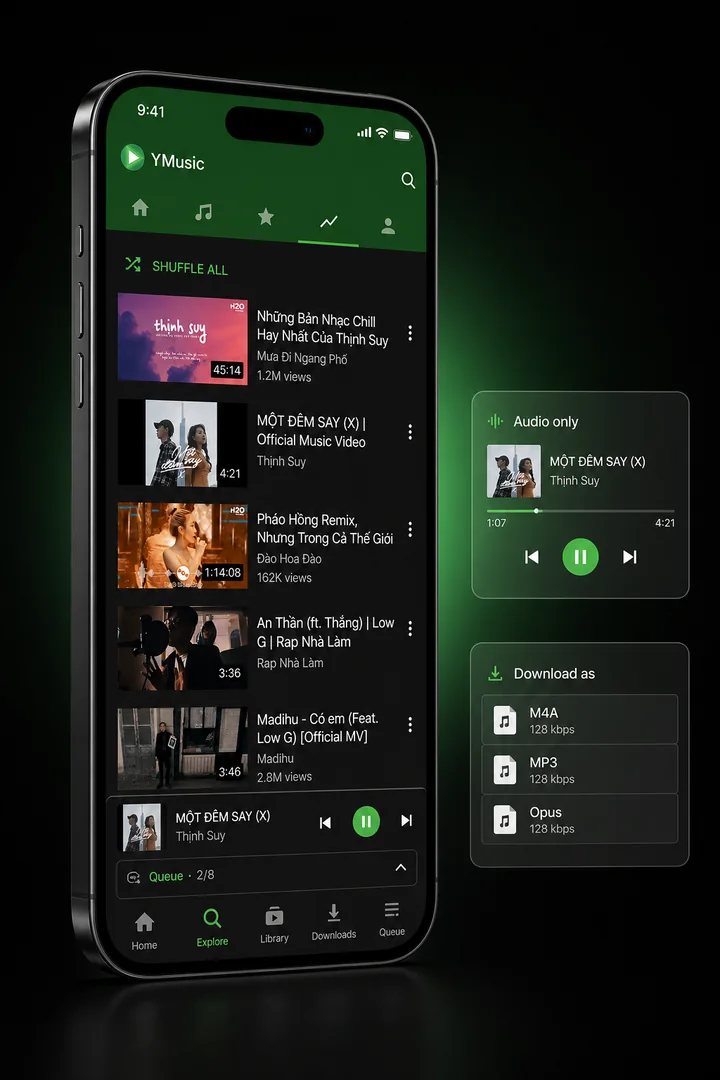
The current YMusic download record holds the build and file details. The capability reference below separates controls confirmed in the package from conditions imposed by the source video, YouTube account, Android device, or add-on state.
YMusic Features at a Glance
The inspected YMusic package supports 10 core feature groups. “Confirmed” means a current resource, capability, MIME handler, permission, or embedded change record is present; it does not promise that every YouTube item or Android device will complete the action.
| Feature group | Confirmed capability | Main condition |
|---|---|---|
| Background playback | Keeps audio in a foreground media session while another app is open or the screen is off | Android/OEM battery and data rules can interrupt it |
| Audio-only mode | Plays the audio stream without keeping video active | The item must expose a supported stream |
| Downloads | M4A, MP3, custom source formats, download queue, Wi-Fi-only mode, and location controls | Options depend on the source item and service response |
| Playlists and queues | Queue next/last, local playlists, YouTube playlists, queue-to-playlist, history, and rewind | YouTube playlist actions require account state |
| Local library | Indexes accessible media, included/excluded folders, tags, and downloaded files | Android storage access controls which folders are visible |
| Equalizer and playback controls | Built-in/system equalizer paths, pitch, and speed | Audio effects vary by device and session |
| Sleep timer | Pauses playback when the timer ends | Timer state belongs to the active playback session |
| Picture-in-picture | Shows supported video in a small floating system window | Requires compatible Android PiP behavior and video mode |
| Lyrics and subtitles | External lyrics search plus separate subtitle controls | No verified synchronized in-app lyrics database |
| Ads and add-ons | Base-app ads/premium prompts, YPlugin recognition, and support-package recognition | Free, paid, ad, and unlock states are distinct |
The official YMusic site describes the app as an Android browser that reduces data use and plays audio in the background. The package inspection supplies the deeper distinctions that the short official landing page does not document.
How Does YMusic Background Playback Work?
YMusic can keep audio playing through an Android foreground media service while another app is visible or the screen is off. Its background mode can switch off video and continue the supported audio stream, reducing the work required to render a moving image.
The package declares foreground-media, wake-lock, network, and audio-setting capabilities. Its English resources include Background playback, Audio only, a setting to keep music playing except during a phone call, and text stating that video is turned off automatically during background playback.
These 3 modes are related but not identical:
| Mode | What remains active | Best use | Main limitation |
|---|---|---|---|
| Background playback | Media session and audio while YMusic is not foreground | Screen-off listening or using another app | Battery saver or background-data policy can stop the session |
| Audio-only | Audio stream without normal video rendering | Lower visual processing and potentially lower data use | Savings depend on the stream requested and cache state |
| Picture-in-picture | A small video window above another app | Watching supported video while multitasking | Needs video mode and Android PiP support |
Audio-only mode does not guarantee one fixed percentage of data savings. Consumption depends on audio bitrate, whether video would otherwise have played, repeated content in the player cache, network retries, and source behavior. The package contains a maximum player-cache control and explains that a larger cache can reduce repeated network use.
Background playback can still pause when:
- another app takes audio focus;
- a phone call begins;
- Data Saver blocks background network access;
- the device restricts battery use;
- Wi-Fi or mobile data disconnects;
- YouTube changes or rejects the requested stream;
- the selected content is unavailable, restricted, or unsupported.
A background interruption is therefore not evidence that the feature is absent. It means the media session, network request, or system policy did not remain available for that playback attempt.
Which Audio Download Formats Does YMusic Support?
YMusic exposes M4A and MP3 downloads and contains Opus/WebM audio handling for compatible source or custom-format paths. M4A and Opus can preserve an available source stream, while MP3 is an output created through conversion.
| Format/path | How YMusic handles it | Quality implication | Availability |
|---|---|---|---|
| M4A/AAC | Selects an available MP4-contained audio stream | Avoids an extra MP3 transcode when the selected source is already AAC | Offered when the source exposes a compatible stream |
| Opus/WebM audio | Handled through source/custom format and MIME pathways | Can preserve the available Opus stream without converting it to MP3 | Not guaranteed in the quick buttons for every item |
| MP3 | Uses the app’s conversion/audio-plugin path | Convenient compatibility, but another lossy encode cannot add missing source detail | Depends on converter/plugin state and a valid source stream |
| Custom download | Exposes other available stream choices | Lets the reader choose based on container, codec, or resolution | Choices change by item |
The current package contains explicit Download M4A, Download MP3, Custom download, audio/opus, audio/webm, audio/mp4, and audio/mpeg evidence. It also contains an in-app MP3 converter, audio-plugin messages, fast-conversion settings, preferred audio-language selection, and parallel download controls.
Does MP3 at 320 kbps improve the source?
No. A 320 kbps MP3 setting controls the bitrate of the converted output. If the source stream already lost information through an earlier lossy encoding, converting it to a higher numerical bitrate cannot recreate that information. It may also create a larger file without a proportional audible benefit.
Choose format by the playback target:
- use M4A/AAC when broad mobile compatibility and avoiding another conversion matter;
- use Opus/WebM audio when the source offers it and the intended player supports it;
- use MP3 when device or software compatibility matters more than avoiding a transcode;
- inspect Custom download when the quick options do not show the desired source stream.
What else can change the download choice?
YMusic can expose an audio-language preference, automatic tags, artwork, Wi-Fi-only transfers, download location, thread/parallel controls, and auto-resume. Those controls do not override source restrictions. A live stream, age/region restriction, alternate soundtrack, removed item, or service-side extractor change can remove an option or stop link generation.
Automatic metadata can use the video title, artwork, and external metadata matching. It can be wrong when a video title does not identify one clean track or when a full album exists as a single video. Check artist, title, album, and artwork before treating the downloaded file as a finished library record.
Saving or sharing copyrighted material requires permission under the applicable service terms and law. A format button is a technical capability, not a rights grant.
How Do Playlists, Queues and the Local Library Differ?
A now-playing queue is temporary playback order, a local playlist is managed inside YMusic, and a YouTube playlist belongs to an account. The local library is the wider index of accessible audio files; it is not the same object as any playlist.
| Object | What it stores | Account required? | Does it make files offline? |
|---|---|---|---|
| Now-playing queue | Current and upcoming playback order | No | No |
| Local playlist | References to tracks available to the app | No for local use | No; referenced files must already exist or remain reachable |
| YouTube playlist | Videos saved under a YouTube account/channel | Yes | No |
| Local library | Audio files Android allows YMusic to index | No | Files are already local |
| Rewind/history view | Previous listening position or activity | Varies by view/account state | No |
The package supports Queue next, Queue last, queue position, and creation of either a local or YouTube playlist from the current queue. It can also add one item to either playlist type.
Local playlists
A local playlist organizes items that YMusic can resolve on the device or through its own state. Creating the playlist does not download every referenced track. If a local file moves or is deleted, YMusic may ask to search for it or remove the missing entry.
Local playlists are useful when account sync is unnecessary. Their survival across uninstall, storage reset, or device migration depends on how YMusic stores and exports that state. Preserve important playlist and download data before destructive app changes.
YouTube playlists
Creating, saving, liking, subscribing, or editing a YouTube playlist requires sign-in. The package includes personalized home feed, liked videos, watch history, Watch Later, subscriptions, and YouTube-playlist controls. Some creation actions require the account to have a YouTube channel.
Account state also affects which recommendations and saved lists appear. A local playlist and a YouTube playlist with the same visible title remain separate objects.
Queue, Rewind, and history
The queue controls what plays next. A Rewind playlist or resume state helps continue from prior listening, while History and Last added organize previous activity or local additions. These views can be cleared or rebuilt without deleting the underlying audio files in every case, so read a confirmation dialog before removing history or playlist data.
Local library and folders
YMusic can index media in folders Android exposes to it. Included-folder and excluded-folder settings narrow that scan. On newer Android versions, scoped-storage behavior may prevent a legacy-target app from seeing every location even when files exist.
The library can use automatic audio tags, cover art, artist/album fields, and Last.fm-based metadata. These are classification aids, not authoritative music credits. Review incorrect tags before moving or renaming a large collection.
Does YMusic Have an Equalizer?
YMusic exposes a built-in equalizer and can fall back to a system or external equalizer, but audio-effect support depends on the phone and active audio session. The package declares audio-setting access and includes separate built-in, system, and unsupported-device messages.
The available path can be:
- enable YMusic’s built-in equalizer;
- use the system equalizer when Android exposes one;
- open a compatible external equalizer when the device has no supported built-in path.
The package references Poweramp Equalizer as one external option, but that is a recommendation inside the app rather than a requirement. A device can expose different bands, bass boost, virtualizer, presets, or no usable effects.
Pitch and playback-speed controls also appear in the package. Speed changes duration and pacing. Pitch changes tonal frequency. Their simultaneous behavior, range, and audio quality can differ between online, downloaded, and device-decoder paths.
Do not treat an equalizer as a source-quality repair. It changes frequency balance or effects during playback; it does not restore detail removed by a lossy stream or conversion.
Does YMusic Have a Sleep Timer?
YMusic includes a sleep timer that pauses music when the selected interval ends. The package contains both the timer control and the completion message that playback was paused by the sleep timer.
The timer acts on the current YMusic playback session. Android can stop the session earlier because of battery, focus, or network conditions; the timer does not guarantee uninterrupted playback until its endpoint. Check the active timer after restarting the app or changing playback sessions.
What Is YMusic Picture-in-Picture Mode?
Picture-in-picture keeps a small supported video window visible above another app; it is different from audio-only background playback. The current package contains Picture in picture (floating player) and its embedded change record documents PiP support.
PiP needs:
- a video mode rather than audio-only playback;
- an Android/device version that supports app PiP;
- system permission or app settings that allow the window;
- a selected item that can play as video.
The floating window can pause, disappear, or return to the full player when Android changes app state. It is not evidence of a separate overlay service, and it does not mean YMusic has a native desktop-style mini player on every platform.
Does YMusic Show Lyrics or Subtitles?
The inspected package exposes “Search lyrics on Google” and separate subtitle controls; it does not establish synchronized in-app lyrics. The lyrics action opens a search based on the current item rather than displaying a verified time-synced lyrics catalogue inside YMusic.
Subtitles belong to video content and use their own language, download, or mixing path. A subtitle track can contain dialogue or captions, but it is not automatically a song-lyrics source.
Claims of real-time or synchronized lyrics should not be treated as a current YMusic feature without a confirmed in-app lyrics screen and data source.
Does YMusic Contain Ads or Premium Features?
The base APK contains advertising and premium prompts, so “completely ad-free” and “all features unrestricted” are inaccurate blanket descriptions. The package includes AppLovin components, Advertising ID access, ad-loading messages, full-screen-ad prompts, premium purchase text, and rate-limit messaging.
| Product/state | Current evidence | What can be claimed |
|---|---|---|
| Base YMusic APK | Ad code/resources, ad-removal prompts, premium/rate-limit text | Core features exist, but ads or limits can appear |
| YPlugin | Current Google Play description says it unlocks all YMusic features for free; listing says ads and in-app purchases | It is a separate KDEV add-on with its own monetization/data declarations |
| Support Development | Current Google Play description says it adds no functionality and supports maintenance | Buying it supports development; no feature unlock should be promised from the listing |
| Temporary ad removal | Base resource says an ad can remove ads for a limited period | A time-limited state, not permanent ad-free-by-default behavior |
The current YPlugin Google Play listing also declares collection/sharing categories for app activity, app information/performance, and device or other IDs. The dedicated YPlugin for YMusic reference owns its full purpose, data-safety, purchase, and setup distinctions.
The current Support Development listing says the paid app provides no additional functionality. That conflicts with older or runtime base-app wording that associates a Play Store premium package with permanent ad removal. Do not assume the support purchase changes YMusic unless the exact in-app offer and current Play listing state that outcome at purchase time.
What Other YMusic Controls Are Confirmed?
Additional package resources support these secondary capabilities:
| Control | What it does | Limitation |
|---|---|---|
| Player cache | Reuses cached media data within a configured limit | Cache can be cleared and is not a permanent offline library |
| Wi-Fi-only download | Delays transfers until Wi-Fi is available | A stalled item still needs a valid source link |
| Preferred audio language | Chooses among source audio tracks when available | Many items expose only one track |
| Auto-resume downloads | Restarts eligible interrupted transfers | Expired or invalid links may require regeneration |
| Tags and artwork | Applies title/artist/cover metadata | Automated matches can be wrong |
| Themes | Adjusts base theme and primary/accent/background colors | Options vary by build/UI state |
| Speed and pitch | Changes playback rate or tonal pitch | Range and quality vary by decoder/session |
| SponsorBlock | Provides enable/disable resources for supported segments | Depends on segment data and the selected video |
| Video details/comments | Opens contextual information for a video | Account, region, or service state can limit it |
| Search/history/feed | Browses YouTube results and personalized account views | Personalized features require sign-in |
Code or resource presence confirms a path exists. It does not establish a service-level success rate.
What Can Limit a YMusic Feature?
A YMusic feature can be present in the app and still be unavailable for one action because the source, account, Android system, device effects, storage, or service response changed.
| Condition | Features affected | Meaning |
|---|---|---|
| Source stream lacks a format | download choices, audio-only | The app cannot select a stream the item does not expose |
| YouTube changes extraction or tokens | playback, downloads, metadata | A later app update may be required |
| Signed-out account | saved YouTube playlists, subscriptions, personalized feed | Local playback/library can remain available |
| Battery/Data Saver restriction | background playback, downloads | Android can stop or delay work |
| Scoped storage or denied access | library, tags, downloads | The app cannot index every folder |
| Device audio/PiP support | equalizer, floating video | Hardware, firmware, and Android capabilities vary |
This distinction is the safe way to read a feature list: present means YMusic contains the control or handler; available now also requires the surrounding conditions to succeed.
YMusic Features FAQ
Put the YMusic features to work
Review compatibility and installation requirements before opening the verified Android package.